

Use the B2Brouter connector in Claude
The B2Brouter connector is now in Claude’s official connectors directory. This guide explains how to add it to your Claude account, use it in your chats and manage it.
To learn what the connector can do, how it protects your data and what its limits are, see the general AI Connector (MCP) guide.
Requirements
Section titled “Requirements”- In B2Brouter: an account with an active paid subscription. Invoice, tax report and financial summary features require the Professional plan or higher. Details are in the general guide’s requirements.
- In Claude: any plan, including the free one.
No API key or technical setup is needed: you connect with your B2Brouter username and password.
Add the connector
Section titled “Add the connector”There are two ways to get there; the result is the same.
From the direct link:
- Sign in to Claude and open the B2Brouter page in the directory: claude.ai/directory/b2brouter.
- Click Connect.
- A B2Brouter window will open: sign in (if you aren’t already) and authorize Claude’s access.
- You’ll return to Claude with the connector ready to use.

From inside Claude:
- In the left sidebar, click Customize and open the Connectors tab.
- Click the + button and choose Browse connectors.
- Search for B2Brouter and click Connect.
- Sign in to B2Brouter and authorize access, as above.
You only do this once. The connector is tied to your Claude account and is available in every version: web, desktop app and mobile app (iOS and Android) the next time you sign in there.
If your company uses Claude Team or Enterprise
Section titled “If your company uses Claude Team or Enterprise”On these plans, an owner of your Claude organization must add the connector before members can use it:
- Organization settings → Connectors.
- Browse connectors, choose B2Brouter and click Add to your team.
Then each person connects it with their own B2Brouter user, following the steps above. The Claude administrator doesn’t get access to anyone’s B2Brouter data: each person only sees what their B2Brouter user can already see.
Use it in a chat
Section titled “Use it in a chat”You can turn the connector on or off in each chat:
- Click the + button at the bottom left of the chat (or type
/). - Hover over Connectors.
- Turn on B2Brouter.
From then on, just ask naturally. Claude decides on its own when to query B2Brouter and shows you in the chat each time it does. To get started, try:
“Which B2Brouter accounts do I have?” “Which invoices have errors this month?” “What do I have left to collect?”
You’ll find more examples in What you can do.
Tool permissions
Section titled “Tool permissions”Claude may ask for your confirmation before each B2Brouter query. You can change this in Customize → Connectors → B2Brouter, where each connector function has three options:
- Always allow: Claude queries without asking.
- Needs approval: Claude asks for your permission every time.
- Blocked: Claude can’t use that function.
Since every connector function is read-only (none can create, change, send or delete anything), Always allow is a safe choice and makes chats smoother.
Use it in Claude Code
Section titled “Use it in Claude Code”If you use Claude Code with the same Claude account, the connectors you’ve added in claude.ai are available there too.
If you’d rather register it directly in Claude Code, add it as a remote MCP server:
claude mcp add --transport http b2brouter https://app.b2brouter.net/mcpThen, inside Claude Code, run /mcp to sign in to B2Brouter and authorize access.
Disconnect it
Section titled “Disconnect it”- From Claude: Customize → Connectors → B2Brouter → disconnect it. Claude no longer has the connector available.
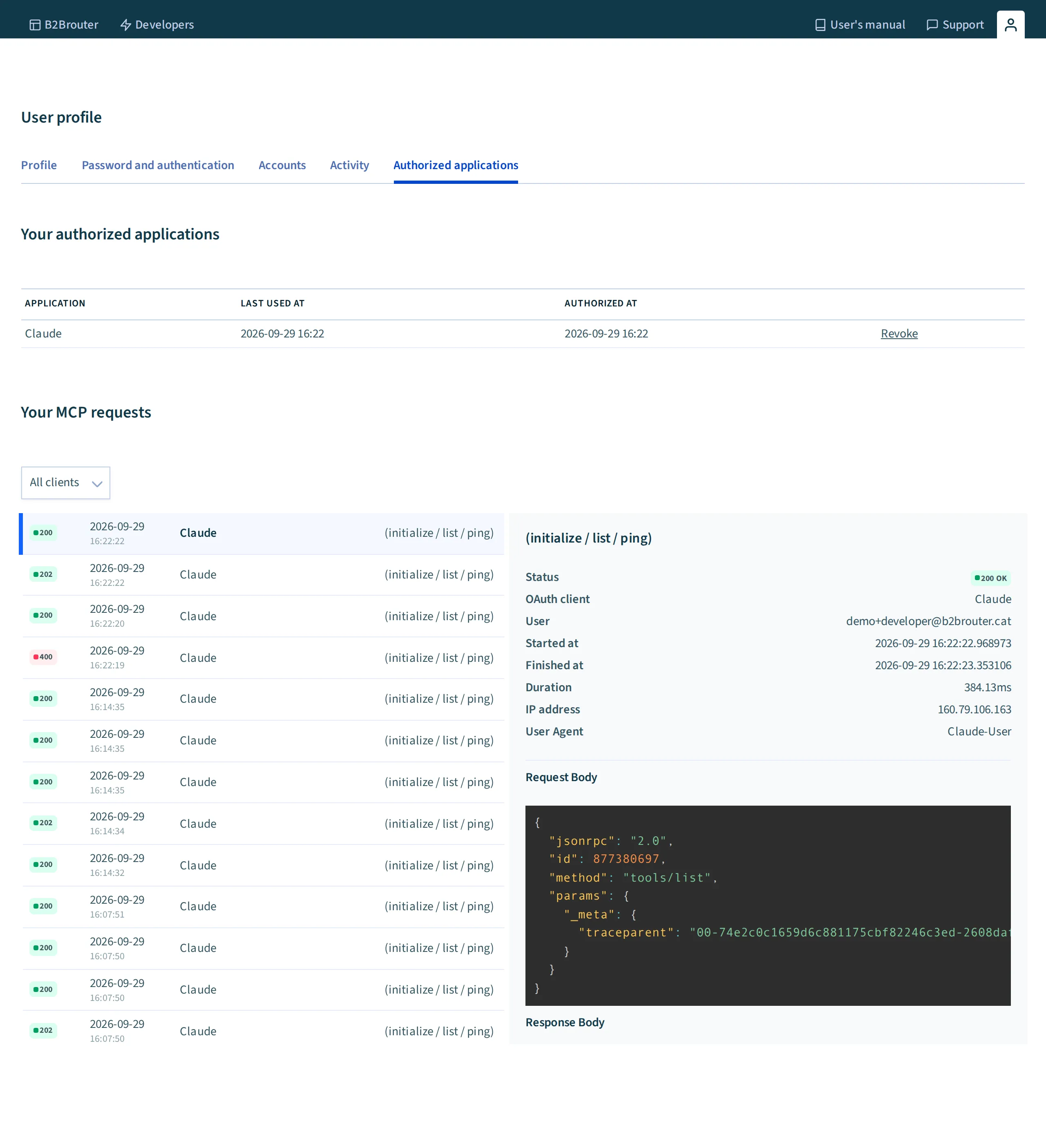
- From B2Brouter: in your profile → Authorized applications, revoke Claude’s access. The effect is immediate.
To cut off access completely, do both. Remember that under MCP Activity, in your B2Brouter profile, you can see every query Claude has made to your account.
If something isn’t working
Section titled “If something isn’t working”| Symptom | Likely cause | Solution |
|---|---|---|
| You can’t find B2Brouter in the directory or can’t connect it (Team/Enterprise) | Your Claude organization hasn’t added the connector yet | Ask an organization owner to add it (see above) |
| Claude answers without querying B2Brouter | The connector isn’t turned on in this chat | Turn it on with + → Connectors, or ask explicitly: “check it in B2Brouter” |
| Claude asks for permission on every query | The function is set to Needs approval | Change it to Always allow (see Tool permissions) |
| Authorization doesn’t finish or doesn’t return to Claude | Pop-up blocking or session expired mid-process | Allow the B2Brouter window, sign in and try again |
| ”An account with an active subscription is required” | Your user doesn’t have access to any B2Brouter account with an active paid subscription | Activate or renew a subscription, or ask to be added to a paid account |
For other errors (invoices not found, directory usage limits…), see If something isn’t working in the general guide.