

Manage your user profile
To customise aspects such as your name, password or language, follow these steps:
- Click on the icon located at the top right, next to your username, to access the User profile.
- In the drop-down menu that appears, select the first option.
Once inside the user profile settings, you can navigate through the different sections using the menu on the left side.
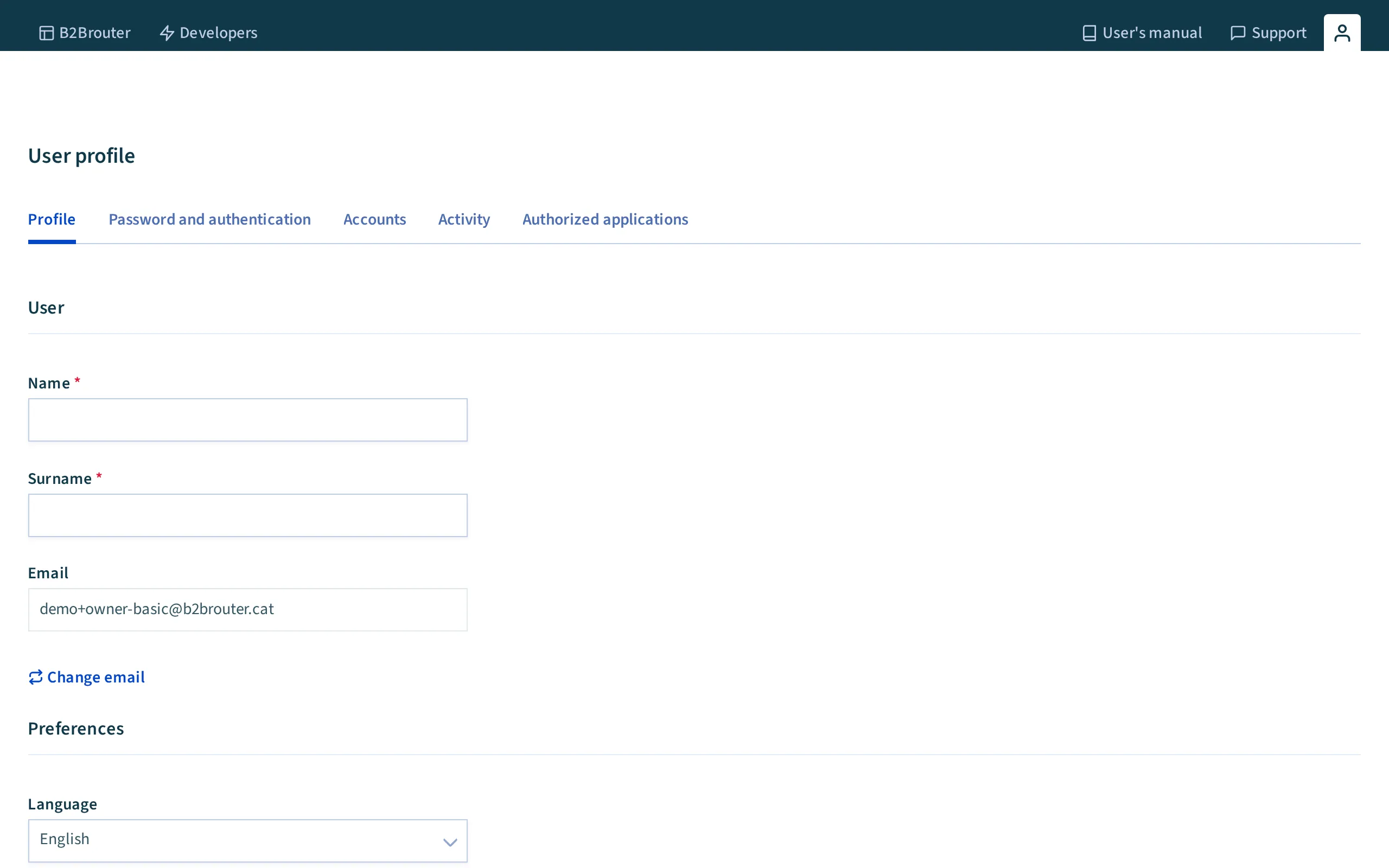
Profile data
Section titled “Profile data”In this section, you can change your first and surname associated with your profile.
Change of Email Address
Section titled “Change of Email Address”To change the email address associated with your B2Brouter account, follow these steps:
- Click the Change email address button.
- Enter your new email address.
- A pop-up window will appear, informing you that you’re about to change your email address. Confirm the action.
- You will receive an email at the new address. Click the Confirm change button to complete the process.
Login sessions
Section titled “Login sessions”On the same profile page, the Login sessions section lists the last 10 sessions of your user. For each session you see the Location, the Device (browser and system), the Ip address, the Time since it was opened and the Session status: Current session, Active or Expired.
- To close one active session, click the sign-out icon on its row.
- To close every session except the one you are using, click Sign out all other sessions.
The location is approximate. It is calculated from the IP address of the connection and is the place where that IP is registered, which can be a different city from yours, for example the headquarters of your internet provider or of your company network.
New device access alert
Section titled “New device access alert”When a session opens with your user from a network you have not used before, you receive an email with the subject “Access to your B2Brouter Account from a new device”. You do not receive it if you have already logged in from the same region with the same browser and system. The email shows the device, the device location and the date and time of the access. The location is that of the IP address, with the same approximation as in the sessions list.
The alert is sent only when the session has opened. A failed login attempt does not send it.
- If the access was yours, for example from another computer or on mobile data, ignore the email.
- If you do not recognise it:
- Click the I don’t know this device button in the email. It opens your user profile with the Change password option.
- Close the unknown session in Login sessions, or click Sign out all other sessions.
- Change your password immediately.
- Enable two-factor authentication.
Password and authentication
Section titled “Password and authentication”To change your password follow the steps below:
- Enter your new password in the Password field.
- Re-enter your new password in the Confirm your password field.
- Be sure to save your changes by clicking Save.
Two-Factor Authentication
Section titled “Two-Factor Authentication”Two-factor authentication enables an additional security measure that adds a second layer of protection to the password you use to access B2Brouter.
To activate this option you need to download a TOTP application (e.g. Google Authenticator, Authy or Duo Mobile) to your mobile device.
It is important to bear in mind that the device used to configure the two-factor authentication cannot be modified, it must always be the same.
You should also consider that, once you have configured the two-factor authentication, every time you want to access the platform you must have the device within reach, so that you can enter the code it provides you with.
Once you have downloaded the application:
- In the Two-Factor Authentication section of B2Brouter, click on the Enable button.
- Scan the QR code provided by B2Brouter with the TOTP application.
- Enter the Code generated in the app to enable two-factor authentication.
- Click Enable.
From this moment on, every time you log in to the platform, the system will ask you for the code generated by the TOTP application you have downloaded, thus providing greater security to your data.
To access this code you must open the TOTP application every time you want to access your B2Brouter account.
Preferences
Section titled “Preferences”In this section, you can customise the language and time zone of the platform according to your preferences. Don’t forget to click Save to apply the changes you have made.
The language you select here only changes the interface for your user: the language of the invoices each client receives is set in the Language field of their contact card.