

Create and send a self-invoice
A self-invoice is a type of invoice that a customer issues on behalf of their supplier to document a commercial transaction. This occurs when the buyer assumes the responsibility of issuing the tax document instead of the supplier.
Keep in mind that to create self-invoices in B2Brouter, you need a Business plan, although the recipient can receive self-invoices with a Basic plan.
How to create a self-invoice
Section titled “How to create a self-invoice”- Go to the Expenses section in the top main menu.
- In the left-side menu, click Self-invoices.
- Select the option Create self-invoice.
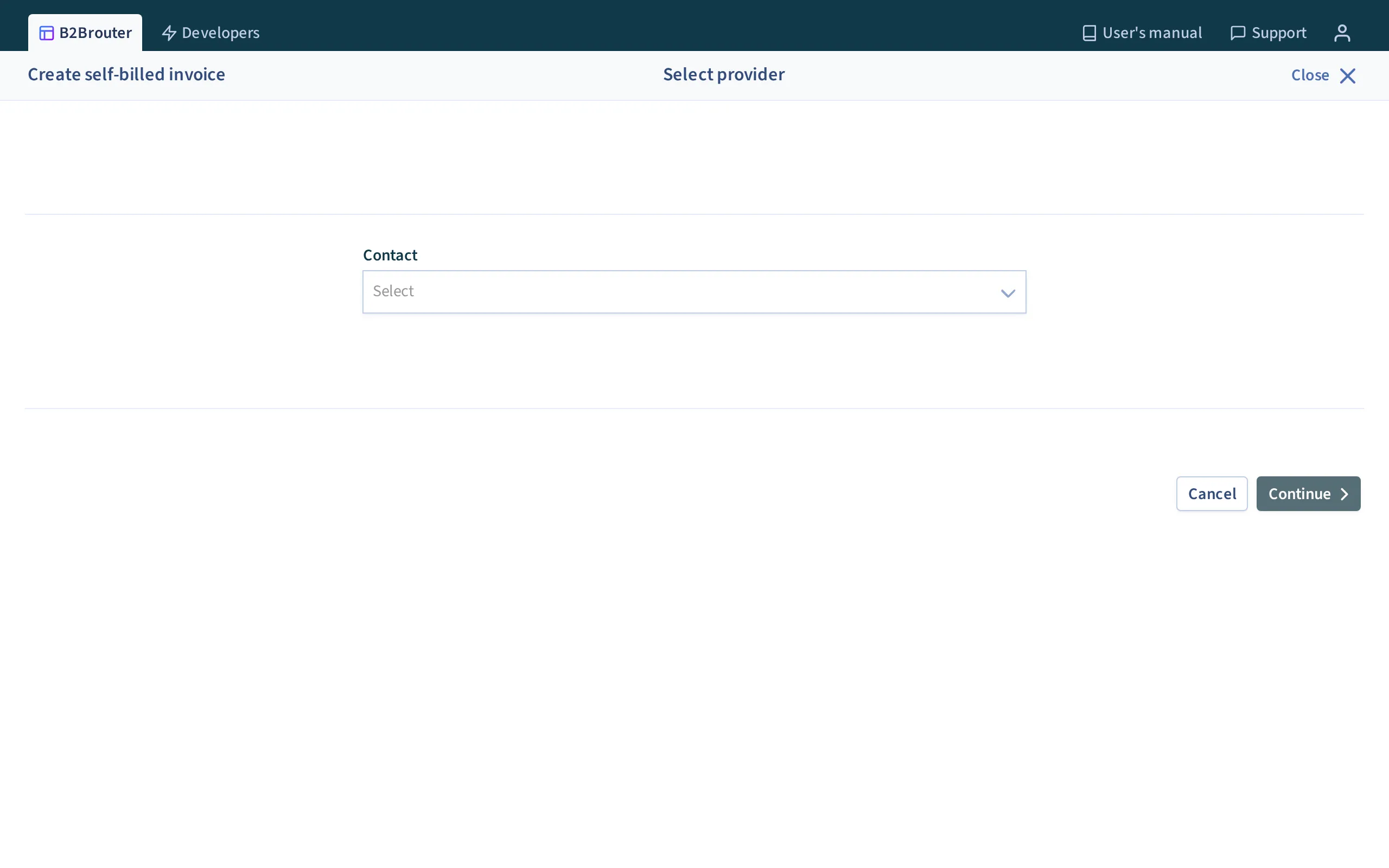
- On the next page, a dropdown will appear where you must select the contact you want to issue the self-invoice to.
- Choose the contact and select Continue to start creating the invoice.
In the form, follow the usual steps to create an invoice.
- Once you have created the invoice, use the Save and preview button to access the invoice preview.
- A draft of the self-invoice is automatically created.
- Use the Send button to issue the invoice.
The recipient will receive an email with a link to the invoice preview, or they can access it directly in the Income section.
Requirements and considerations
Section titled “Requirements and considerations”- To create self-invoices, you must have a Business plan.
- The recipient can receive self-invoices with a Basic plan.
Managing received self-invoices
Section titled “Managing received self-invoices”Through the Income > Received self-invoices section, the recipient can:
- Accept: The invoice moves to the “Accepted” status.
- Reject: The invoice is marked as “Rejected” and caan be deleted.
- Download the invoice in PDF format.
When the recipient marks the self-invoice as paid, a notification is sent to the issuer.
Self-invoice statuses
Section titled “Self-invoice statuses”- Sent: When it is sent to the recipient.
- Accepted: When the recipient accepts it; it is then considered a received invoice for accounting purposes.
- Rejected: It can be edited or deleted.
- Paid: When the recipient confirms payment.