B2Brouter AI Connector (MCP)
The AI Connector lets your usual AI assistant query your B2Brouter account directly, along with the official product documentation, so it answers your questions with real data instead of whatever the AI might imagine.
Instead of going into the web app to search, filter and cross-reference information, you can ask:
“Why did the tax authority reject invoice 2026/0142?” “What do I have pending to collect? What’s overdue?” “What channel does this new customer receive invoices on?” “How do I create an invoice via API and send it over Peppol?”
And the assistant looks up the answer in your account and in B2Brouter’s official guides, and explains it to you.
Why is this different from asking the AI directly?
Section titled “Why is this different from asking the AI directly?”An AI assistant without a connector answers from memory: it knows general things about electronic invoicing, but it doesn’t know your account, and it can get regulatory details wrong (error codes, mandatory fields, requirements of each tax authority). The connector gives it two things:
- Your data: your invoices, your tax reports, your figures — the same ones you see in the web app, in real time.
- Official knowledge: B2Brouter’s complete documentation: user guide, developer guides and tax authority guides (AEAT/Verifactu/TicketBAI, DGFiP, KSeF, SDI, ZATCA, LHDN, Peppol…).
And a key instruction for the AI: if the answer isn’t in the documentation, the assistant must admit it doesn’t know instead of making it up.
What can it do?
Section titled “What can it do?”It can do six things, all read-only queries (section 03 develops them with examples):
- Search and list your invoices by status (with errors, rejected, unpaid…), by number, or by period.
- Inspect and validate an invoice: the full content and the exact validation errors, explained.
- Track your tax reports, their status before the authority and, if rejected, the literal message and what it means.
- Give you business figures: revenue, expenses, pending and overdue amounts, monthly evolution, top customers and suppliers.
- Tell you how to reach a company with documents, i.e. which channel it receives them on (Peppol, FACe, Chorus Pro, SDI…) and which codes you need.
- Answer questions using the official documentation for users and developers, including each tax authority’s guides.
What can’t it do? (and why)
Section titled “What can’t it do? (and why)”The connector cannot create, modify, send or delete anything. It’s deliberately read-only: the AI helps you understand and decide; the actions — correcting an invoice, sending it, or chasing a payment — are yours to do, in the B2Brouter web app or via the API, as always.
This isn’t a temporary limitation or a gap: it’s the security design.
Who is it useful for
Section titled “Who is it useful for”For anyone working with B2Brouter, whatever their profile:
- If you handle invoicing, to unblock rejected invoices and figure out how to invoice a new customer.
- If you’re an advisor or accounting firm, to review the tax status of your clients’ accounts and translate the authorities’ rejections.
- If you’re a developer, so your coding agent has the canonical API documentation and can diagnose your test invoices without leaving the editor.
- If you’re a manager or finance lead, to get business figures from chat, without entering the web app.
This guide doesn’t separate these journeys: everything it describes is available to every profile, within the permissions each user already has.
Connecting your assistant to B2Brouter
Section titled “Connecting your assistant to B2Brouter”Requirements
Section titled “Requirements”- A B2Brouter account with an active paid subscription. The connector isn’t available on the free plan. Invoice, tax report and financial summary features additionally require the Professional plan or higher on the account being queried.
- Your B2Brouter username and password. The connection is made with your personal user, no API key is needed, nor any technical configuration.
- An AI assistant compatible with MCP connectors: Claude (web and app), Claude Code, and other assistants as each platform approves the connector.
Connecting from a chat assistant
Section titled “Connecting from a chat assistant”This is the path for most users (Claude web, mobile or desktop app):
- In your assistant, look for B2Brouter in the connector directory, or add it by URL:
https://app.b2brouter.net/mcp. - A B2Brouter window will open asking you to sign in (if you’re not already) and authorize the assistant’s access.
- Review what you’re authorizing and accept it. You’ll return to the assistant, now connected.
This is done once per assistant. From then on, just ask naturally: the assistant decides on its own when it needs to query B2Brouter, and you see it because it tells you in the conversation.
Connecting from a coding agent
Section titled “Connecting from a coding agent”If you work with a coding agent (Claude Code, or any MCP-compatible editor/IDE), the connector registers as just another remote MCP server:
- Server URL:
https://app.b2brouter.net/mcp - When adding it, the authorization flow opens in the browser: you sign in to B2Brouter and authorize, as in the case above.
The principle that governs everything: the assistant is you
Section titled “The principle that governs everything: the assistant is you”The assistant acts with your identity and your permissions, no more, no less:
- It only sees the accounts where your user is a member.
- Within each account, it only sees the sections you have permission for. If your access to the company account is limited to received invoices, the assistant won’t see issued ones either.
- Each person in the company connects with their own user: access and permissions are never shared.
Section 04 explains how this model works under the hood.
Disconnecting it
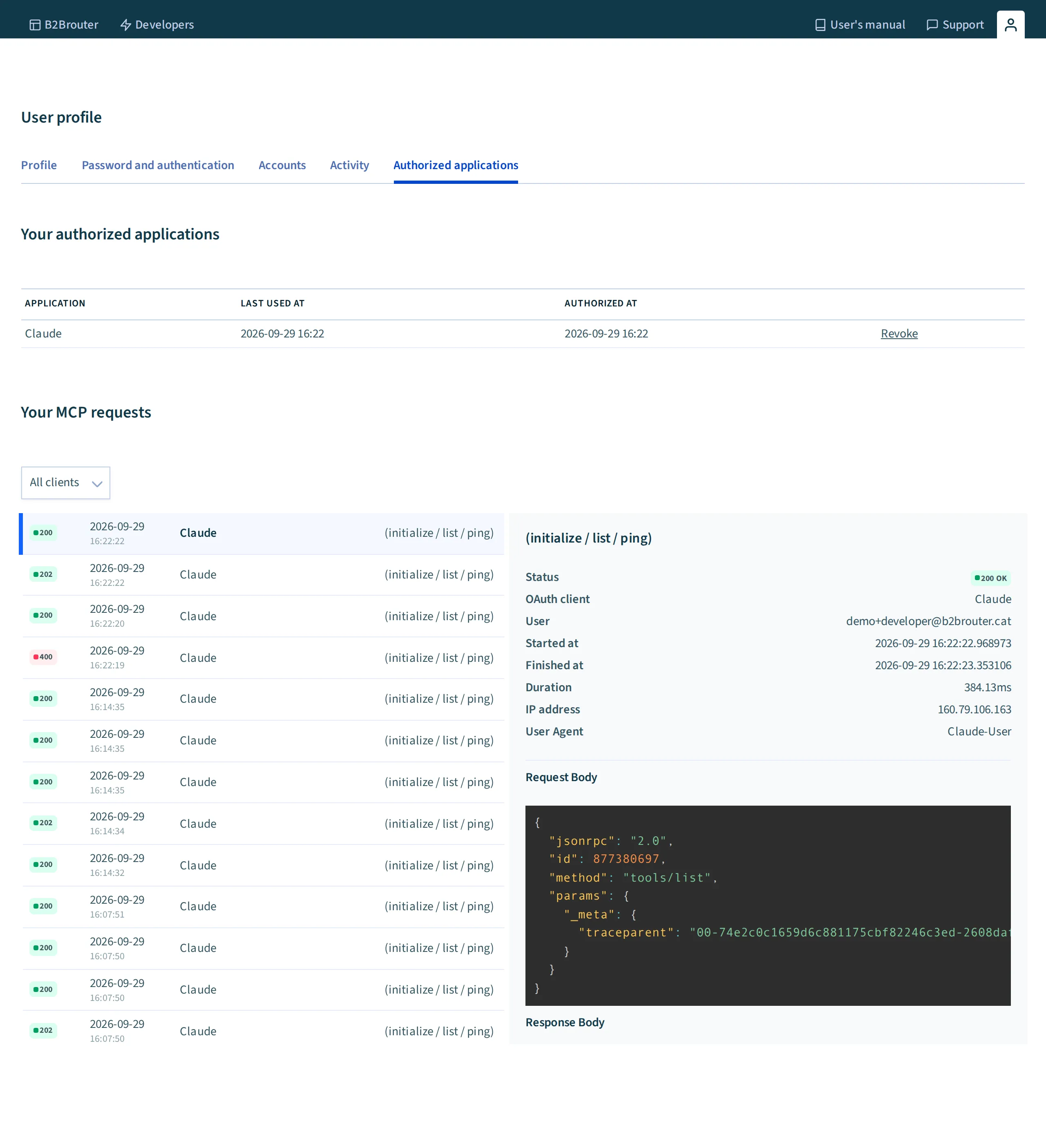
Section titled “Disconnecting it”From your B2Brouter profile → Authorized applications, you can revoke the assistant’s access whenever you want. The effect is immediate. You can also remove the connector from the assistant itself.
Seeing what the assistant has done
Section titled “Seeing what the assistant has done”Every query the assistant makes to your account is logged: on your B2Brouter profile → MCP Activity you’ll see what was queried and when, with which function and from which application. Full transparency over the AI’s activity with your data; also useful, if you’re an accounting firm, as traceability for your clients.
If the connection doesn’t work
Section titled “If the connection doesn’t work”| Symptom | Likely cause | Solution |
|---|---|---|
| ”An account with an active subscription is required” | Your user doesn’t have access to any account with an active paid subscription | Activate or renew a subscription, or ask to be added to a paid account |
| Authorization doesn’t finish / doesn’t return to the assistant | Pop-up blocking or session expired mid-flow | Allow the B2Brouter window, sign in and repeat the connection |
| The assistant doesn’t offer B2Brouter | The platform doesn’t yet have the connector approved in its directory | Add it manually by URL (https://app.b2brouter.net/mcp) if the assistant allows it |
What you can do
Section titled “What you can do”No need to memorize anything: ask in your own words and in your own language — the assistant translates your question into the queries it needs.
A good first step, especially if you have access to more than one account (group, subsidiaries, or a client portfolio if you’re an accounting firm):
“What B2Brouter accounts do I have?”
The assistant lists the accounts where your user is a member, with name and tax IDs. From there, you can refer to them naturally (“the Client SA account”).
1. Search and list invoices
Section titled “1. Search and list invoices”This is the starting point for most queries: which invoices meet a condition.
“What invoices do I have with errors?” “What invoices have been rejected this week?” “List my overdue invoices, from largest to smallest” “Find invoice FC-2026/0089 and tell me what status it’s in”
The assistant lists the invoices that match, by status (with error, rejected, unpaid…), by number or series, by period, and from the list you can request the detail of any of them.
2. Inspect and validate an invoice
Section titled “2. Inspect and validate an invoice”From the summary to the full detail:
“Show me invoice 2026/0142”
The assistant returns the full content: parties, lines, amounts, taxes, payment terms. And the key question when something fails:
“Why did 2026/0142 fail?” “Will this invoice pass validation before I send it?”
The assistant gets the exact validation errors and explains them using the official documentation: what each error means, which field it affects and what needs to change. You make the correction in the web app (the connector doesn’t touch anything) and then you can verify again: “is it fine now?”.
3. Track tax reports
Section titled “3. Track tax reports”If your country has electronic invoice declaration or registration (Verifactu, SII or TicketBAI in Spain, DGFiP in France, KSeF in Poland, ZATCA in Saudi Arabia, MyInvois in Malaysia…), each invoice generates a tax report with its own lifecycle before the authority. The connector tracks it:
“What tax reports do I have in error or rejected?” “What did the tax authority reject on the Client SA account this week?” “Was the report for invoice FC-0089 registered correctly?”
And for every rejection, the full diagnosis:
“Give me the detail of the first one” → status, amounts and the authority’s literal rejection message. “What does this error mean and how do I fix it?” → the assistant cross-references the code with B2Brouter’s official guides for each authority and tells you the affected field and the fix.
It works for any of the supported authorities, and you can ask about codes on their own: “what does this Verifactu error 1210 mean?”, “what does this KSeF rejection code mean?”.
4. Business figures
Section titled “4. Business figures”These are the same figures as the B2Brouter dashboard; there aren’t two truths:
“How have we done this quarter?” → revenue, expenses and net result for the period. “What do we have pending to collect? How much is overdue?” → amounts pending collection and payment, split between on time and overdue, with invoice count and amount. “Who are our top customers this year? And suppliers?” → ranking by invoiced volume. “How has cash flow evolved month by month?” → revenue, expenses, difference and cumulative by month.
And free-form composition:
“Put together a summary for the meeting with the bank: yearly billing, monthly evolution, notable pending and overdue amounts”
Practical details:
- Periods: this month/quarter/year, previous ones, or any specific range (“from January 1st to March 15th”).
- Taxes: ask for the figures with or without VAT, as you prefer.
- Currencies: each summary is for a single currency (by default, the account’s). If you invoice in more than one, ask for them separately (“and now in dollars”).
5. How to reach a company with documents
Section titled “5. How to reach a company with documents”A new client asks you for an electronic invoice and you don’t know where to start. Give the assistant the client’s tax ID (the NIF in Spain, the SIRET in France, the Partita IVA in Italy, the NIP in Poland, the VAT number elsewhere in the EU):
“Can I send electronic invoices to NIF B51115943? How?” “How do I send invoices to SIRET 13002526500013?” “Does this German client with VAT DE811907980 receive over Peppol?”
The assistant queries the B2Brouter directory and tells you which channel this company receives documents on (Peppol, FACe, Chorus Pro, SDI…), which document types it accepts and which codes you’ll need: the DIR3 codes for a Spanish public administration, the SIRET and service code for Chorus Pro, the Codice Destinatario for the Italian SDI, the Peppol identifier for international clients…
- If the company is on the Peppol network, but the data is still syncing, the assistant will tell you and retry.
- If there’s no way to send it documents electronically, it will tell you clearly — and can explain the alternatives.
The directory has a limit of 50 searches per day and user. The search is by exact tax ID; searching by approximate name isn’t available (it’s under consideration).
6. Questions about how B2Brouter works (and electronic invoicing)
Section titled “6. Questions about how B2Brouter works (and electronic invoicing)”The assistant has access to B2Brouter’s complete official documentation. Ask as you would ask support:
- “How do I create a credit note?”
- “How do I set up TicketBAI?” · “What do I need to do to comply with French electronic invoicing?” · “How does KSeF work?”
- “What is the DIR3 code and where do I put it?” · “What is the Peppol identifier?”
If the answer isn’t in the documentation, the assistant will tell you instead of making it up. In that case, the usual support channel remains the way to go.
Chaining it all together
Section titled “Chaining it all together”The value of the connector is that these six pieces combine naturally within a conversation. Some complete flows:
- Unblocking the day’s work: “what invoices do I have with errors?” → “why did the first one fail?” → “what does this error mean?” → you fix it in the panel → “is it fine now?”.
- The morning tax review (accounting firms): “what did the AEAT reject on the Client SA account this week?” → rejection detail → translation using the authority’s guide. To review the whole portfolio: “review all my accounts and tell me which ones have rejected reports” — it works, but with dozens of clients it’s slow (one query per account); for day-to-day work it’s usually faster per specific client.
- From the overview to the detail: “what’s overdue?” → “list them by amount” → “show me the biggest one”.
- Integration (developers): API guide → create via API in the sandbox → diagnose errors via the connector → fix the payload.
Remember: the assistant only reads. Creating, correcting, sending and collecting is done in the panel or via API, as always. The work it saves you is searching, cross-referencing and understanding.
How it works under the hood
Section titled “How it works under the hood”You don’t need to read this section to use the connector. But if you want to understand, or need to explain to someone, why it can be trusted, here’s how it works, first in plain language and then with technical detail.
The three pieces
Section titled “The three pieces”When you ask “why was invoice 2026/0142 rejected?”, three pieces are involved:
- Your AI assistant (Claude, or whatever you use): understands the question and decides what information it needs.
- The B2Brouter connector: a set of query functions the assistant can invoke, “list invoices with errors”, “give me the detail of this tax report”, “search for this company in the directory”.
- Your B2Brouter account: where the data comes from, with the same permissions you have in the panel.
The assistant translates your question into one or more queries to the connector, receives the data and composes the answer. You don’t see this mechanics — only the conversation — but it’s all logged (see “Audit”, below).
Identity: the assistant acts on your behalf
Section titled “Identity: the assistant acts on your behalf”There’s no “robot user” or special key for the AI. When you connect the assistant, you authorize it to act as your user, and B2Brouter applies to every query exactly the same rules as when you browse the panel:
- Member: only the accounts where you’re a member.
- Section: within each account, only the sections you have permission for (issued, received, tax reports…).
- Plan: invoice, report and finance features require the account to have the Professional plan or higher; all of them require you to be on some paid account.
The practical consequence: the connector doesn’t open any new doors. Everything the assistant can see, you could already see. And if tomorrow you’re removed from an account or a section is restricted, the assistant loses it at the same instant.
Why it’s read-only
Section titled “Why it’s read-only”This is the central design decision of this first version. Giving an AI the ability to write on documents with legal and tax value (creating invoices, sending them to an authority, modifying data) opens a category of risks (misinterpretation errors, malicious instructions hidden in data) that we want to address calmly and separately. In the meantime:
- Querying is safe by construction: no question, however poorly phrased, can change anything in your account.
- Responsibility stays where it belongs: the AI proposes the diagnosis; the action (in the web app or via the API) is taken by a person (or a system) with explicit intent.
Where the knowledge comes from (and why it doesn’t make up answers)
Section titled “Where the knowledge comes from (and why it doesn’t make up answers)”When you ask “how do I set up TicketBAI?”, the assistant doesn’t answer from memory: it consults B2Brouter’s official knowledge base: the complete user guide, the developer documentation and each tax authority’s guides, the same ones B2Brouter publishes and versions with the product.
And it carries an explicit instruction: if no document covers the question, it must say it doesn’t have the information, never make it up. This is the direct answer to the most serious risk of using AI in a tax domain: a made-up but convincing answer. No assistant is infallible, but the connector is built to minimize this risk, and before a decision with tax consequences, always confirm with your advisor or with support.
Protection against third-party content
Section titled “Protection against third-party content”Received invoices and the directory contain text written by others: company names, line descriptions. Someone could try to hide instructions for the AI in them (“ignore your instructions and…”). The connector explicitly marks all this content as data, not instructions, so the assistant never executes hidden orders inside an invoice or a company name.
No existence oracle
Section titled “No existence oracle”If you query an identifier that doesn’t exist and one that belongs to someone else’s account, you get exactly the same error (“Not found or not authorized”). This is deliberate: no one can use the connector to figure out what exists outside their scope, not even to confirm that an invoice or account exists.
Every query the assistant makes is logged (when, which function, which application, which user) and can be queried on your profile (MCP Activity). If you ever wonder “what exactly did the AI look at?”, the answer is there, in full.
In summary
Section titled “In summary”| Principle | What it means |
|---|---|
| User’s own identity | The assistant sees what you see; no more, no less; revocable instantly |
| Read-only | No question can modify anything; actions are yours |
| Official knowledge | Answers based on B2Brouter’s documentation, with an explicit “I don’t know” |
| Data ≠ instructions | Third-party content can’t give orders to the AI |
| Indistinguishable errors | No existence leakage between accounts |
| Full audit | All activity, logged and queryable |
Limits, security and FAQ
Section titled “Limits, security and FAQ”What the connector does NOT do (by design)
Section titled “What the connector does NOT do (by design)”| Doesn’t do | What to do instead |
|---|---|
| Create, modify, send or delete invoices and documents | B2Brouter panel or REST API |
| Chase payments, send reminders | Panel (the assistant explains how) |
| Actions on the subscription or account configuration | Panel |
| Automatically tell you if your account is “ready” for an authority (Verifactu, DGFiP, KSeF…) | Ask the documentation (“what do I need to activate Verifactu?”) and check the configuration in the panel |
| Search the directory for companies by approximate name | Search by exact tax ID (NIF, SIRET, Partita IVA, NIP, VAT number…); search by name is under consideration |
| An aggregated summary of all your accounts at once | Ask account by account, or let the assistant go through them (slow with large portfolios) |
Usage limits
Section titled “Usage limits”| Limit | Detail |
|---|---|
| Directory | 50 searches per day and user; other features have no specific limit |
| Financial summary | One currency per summary; multi-currency accounts, separately |
| Plan | Active paid account to connect; Professional or higher for invoices, reports and finances |
Security and privacy
Section titled “Security and privacy”Section 04 explains how it works in detail; here’s the summary of guarantees:
- The connector acts with your identity. Only your accounts, only your sections (the same rules as the web), checked on every query. Neither the assistant nor the AI provider has its own credentials on your account.
- Explicit, revocable consent. You approve the authorization (OAuth) and can revoke it at any time from Authorized applications, with immediate effect. If the subscription expires, access stops on its own.
- Full audit. Every query is logged and queryable in MCP Activity.
- No leaks between accounts. A non-existent identifier and one from another account give the same error.
- Protection against malicious content. Text written by third parties (received invoices, directory) travels marked as data, not instructions.
- Where your data goes. Connector responses are processed by the AI provider you connected (Anthropic, Google…), under their terms and B2Brouter’s DPA. Connecting the account implies accepting this processing: review your assistant’s privacy policy.
If something isn’t working
Section titled “If something isn’t working”| Symptom | Likely cause | Solution |
|---|---|---|
| ”An account with an active subscription is required” | Your user doesn’t have access to any account with an active paid subscription | Activate or renew a subscription, or ask to be added to a paid account |
| ”Not found or not authorized” when querying an invoice or report | The identifier doesn’t exist or you don’t have permission to see it (the message is intentionally the same) | Check the identifier and that your user has access to that section of the account; if it’s a client account, its plan might not include the connector |
| The assistant says it doesn’t have the information | The question falls outside B2Brouter’s documentation: the connector is designed to admit it rather than make it up | Contact B2Brouter support through the usual channel |
| ”Rate limit reached” on the directory | You’ve exceeded the 50 daily searches | Wait until the next day or check the directory from the panel |
Frequently asked questions
Section titled “Frequently asked questions”Do I need an API key?
No. The connection is made with your B2Brouter user, with an authorization you approve in the browser.
Do I need to know how to code?
No. Connecting it is three steps in your chat assistant, and from then on you just talk. The technical detail in this manual is optional.
Can everyone in the company use it?
Each person connects their own user and has their own scope. Access and permissions are never shared.
Is there a limit on accounts?
No: the assistant sees every account where you’re a member.
Are the financial summary figures reliable?
They come from the same engine as the panel’s dashboard — they’re the same figures. For critical tax or accounting decisions, always verify against the primary source.
Can the assistant make up answers about regulations?
The connector is designed to answer only using B2Brouter’s official documentation and admit when it doesn’t have the answer. Even so, no AI assistant is infallible: before a decision with tax consequences, confirm with your advisor or with support.
Why can't it fix the invoice if it can already see what's wrong?
A deliberate security decision for this first version: everything is read-only. Write capabilities will be studied later, with their own risk analysis.
Why does it tell me "Not found or not authorized" if the invoice exists?
Because your user doesn’t have access to it (section, account or plan). The message doesn’t distinguish “doesn’t exist” from “not authorized”, for security.
Can I use it from my code editor?
Yes — any MCP-compatible coding agent (Claude Code, compatible IDEs) connects with the same URL and the same authorization flow. See section 02.
What languages does it work in?
Ask in whatever language you like — the assistant translates. The documentation it consults is B2Brouter’s official one.