

Create and send an invoice
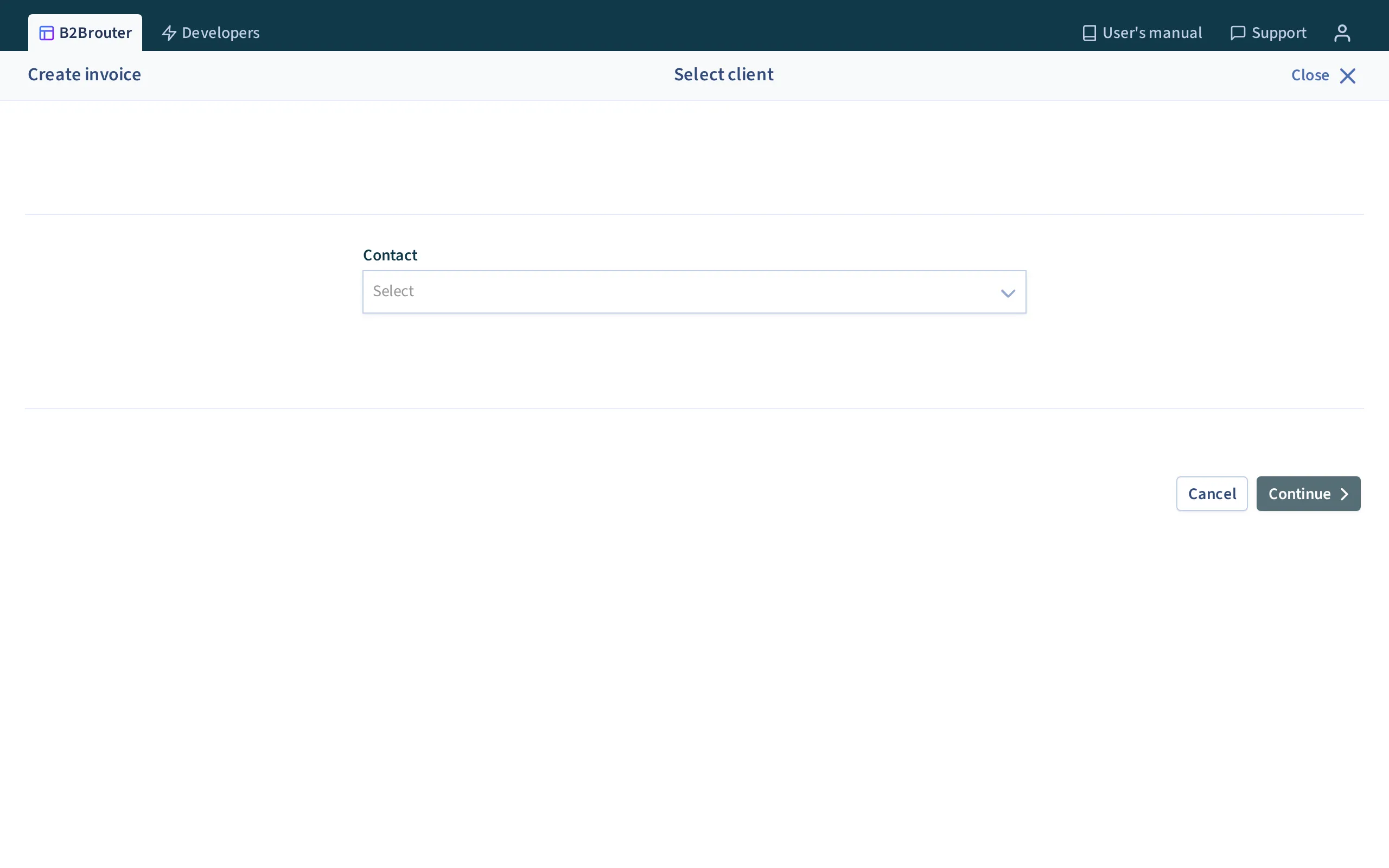
To create an invoice go to the Invoices section of the main menu above.
- Select the Create Invoice option.
- On the next page, you will see a dropdown where you must select the contact you wish to invoice. If you do not have any contact registered, add a contact.
- Once you have selected the client, only if another drop-down is activated with the name Organisational unit, you must select the head office, department or delegation you wish to invoice.
Finally, select the option Continue to start creating the invoice.
General information
Section titled “General information”Next, you access the General data section, where you can add general data such as the number, date, etc. to the invoice:
- Fields marked with an asterisk are mandatory.
- In this section, you can add manually or select other codes such as DIR3, DIRE, etc.
- Activate the More options button at the bottom to add other information such as Contract number, Despatch number, File reference, etc.
Access the next step from the Next button at the bottom right or from the menu.
From the Lines section you can add the information of the lines and select the taxes of the invoice.
Start creating the lines:
- In Name of the product or service, add the concept or description of the product or service you want to add to the line.
- In Quantity, add the quantity of the product or service you wish to invoice.
- In Units, select the most appropriate size for the product or service.
- In Unit price, add the unit price of the product or service you are adding to the line. At the end, the system calculates the result.
- Under each line you find the option Add item from catalogue, which allows you to create the lines easily using the information from your catalogue created in B2Brouter.
- Use the Add line option to add as many lines as you need in the invoice.
To add more information about a line, use the three dots icon to the right of each line.
- In the dropdown, select More options.
- Here you can add more detailed information about the line in question, such as now the identifier, discount, additional charge, etc.
To delete the line, in the same drop-down select the Delete option.
You can also Add a discount or Add an additional charge to the invoice total:
Add discount
Section titled “Add discount”- Click on the option Add discount and activate the button.
- In Discount description, add the concept or description of the discount you wish to apply.
- In Discount amount, add the amount you wish to apply.
- This amount can be in currency or in percentage, something you must select through the drop-down menu.
Add additional charge
Section titled “Add additional charge”- Click on the option Add additional charge.
- Under Reason for charge, add the name or reason.
- In Amount of charge, add the amount you want to apply.
- This amount can be in currency or as a percentage, which you will need to select via the drop-down menu.
- Check the Apply taxes box if you want the taxes on the invoice to be applied to the surcharge as well. Otherwise, they are not applied.
In this section, select the taxes to be applied to the invoice. To apply different taxes on each line, use the Apply per line button.
Once you have completed these steps, you can access the next section using the Next button or from the side menu.
In this section, you can add an Invoice note or a Legal note. The information you add is reflected in the invoice footer. You can also attach files to your invoices, as well as add delivery information for your goods.
Additional files
Section titled “Additional files”From the Additional files section, you can add an attachment to the invoice:
- Use the Select Files option to browse for the file on your system.
- Select the file on your system and it is uploaded to B2Brouter.
- Use the Save button to save the changes to the invoice and upload the file.
- You can also add an optional description of the attached file.
Once you have attached the document, you can access the following section.
Delivery of goods
Section titled “Delivery of goods”Activate the Add delivery of goods button to add the delivery information for the goods on the invoice.
Once you have selected the taxes and created the lines, you can access the next section.
Collection
Section titled “Collection”From the Collection section, select the payment method, the account where you wish to collect the invoice and the due date, among other things:
- In Payment method, select how you wish to collect the invoice.
- Next, the Bank account dropdown is activated, where you can select the account where you wish to receive the payment. If you have not previously added the current account, you can do so using the Add bank account option.
- Under Due date, select the due date you wish to apply to the invoice.
You can also set up invoice collection reminders to be sent to your customer:
- Activate the Send due date reminder to customer button.
- In the drop-down menu, select the number of days limit to send the reminder once the invoice is overdue.
From this same section, you can add more information to the invoice:
Add references, payments, withholdings.
Section titled “Add references, payments, withholdings.”Click on this option and fill in the necessary information to add references, payments and deductions to the invoice.
If you need to adjust a cents difference, see Rounding and VAT calculation. Remember that the rounding adjustment can only be applied to the invoice total, not to VAT.
Add factoring assignment
Section titled “Add factoring assignment”Click on this option to open the form and be able to add the information of the entity that manages the assignment of the collection of this invoice.
Finally, and once you have finished adding the details of all the sections of the invoice, save the changes and view the invoice using the option Save and preview.
Once you have generated the invoice, at the top of the document, you will find the main menu with the different options that allow you to manage it:
- Click the More options button and use the options in the drop-down.
- You can Save as recurring invoice and Duplicate invoice.
- Through the same button, you can also modify the status of the invoice manually by selecting the options mark as sent, mark as accepted, mark as registered, mark as rejected or mark as closed.
- From this dropdown you can also Delete.
Using the other buttons you can also:
- Modify some data of the invoice with the Edit option.
- Send the invoice once you consider that it is correct, with the option Send to send it to the client. You do not need to do anything else.
- Download the invoice file to your system, using the arrow icon in the top left margin of the invoice.
At the top left you can see the updated invoice status.
In addition, at the bottom of the invoice you will find the sections of the invoice:
- Activity, where you can see all the modifications made to the invoice and the related notifications. If the notification allows it, you can consult it by clicking on the + symbol.
- Comments, where you can write a comment in reference to the invoice. This comment can be private or public (your customer will also see it if you are sending the invoice to another B2Brouter account), if you tick the box Public comment (show in the other company).